
PC Optimization and Call of Duty 2 Tweaks [Part 3]
Editing Windows Control Panel/Settings
There are a few changes I like to make in the Windows Control Panel and the newer Settings panel.
I’ll start with the Control Panel, open it:
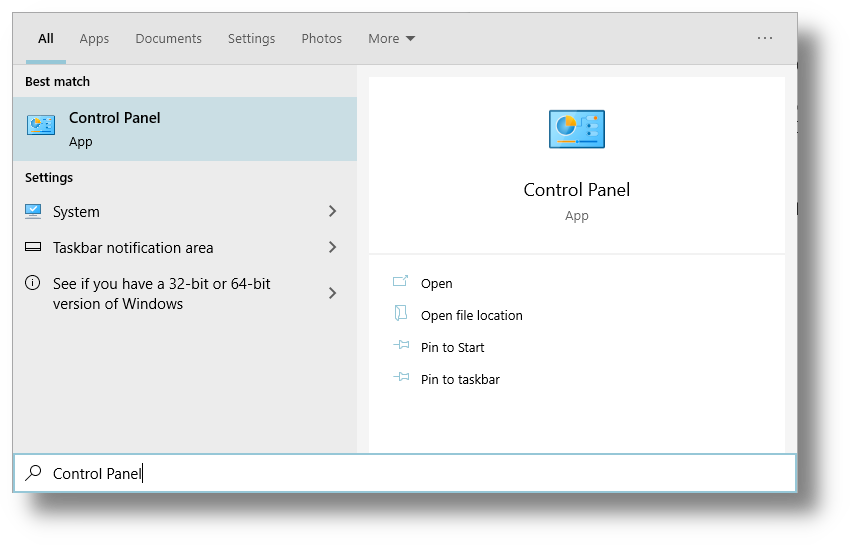
I like to make the following changes:
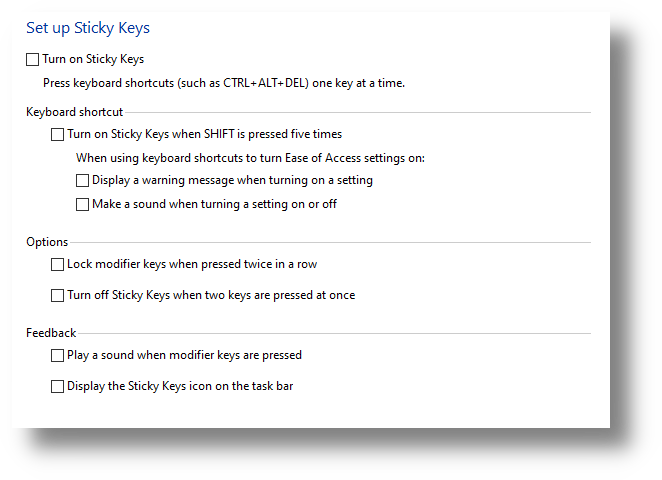
Disable Sticky Keys:
Stops the game from minimizing to show a pop-up regarding Sticky Keys after pressing the Shift Key 5 times in quick succession. This can happen accidentally when you’re playing.Disable Enhance Pointer Precision:
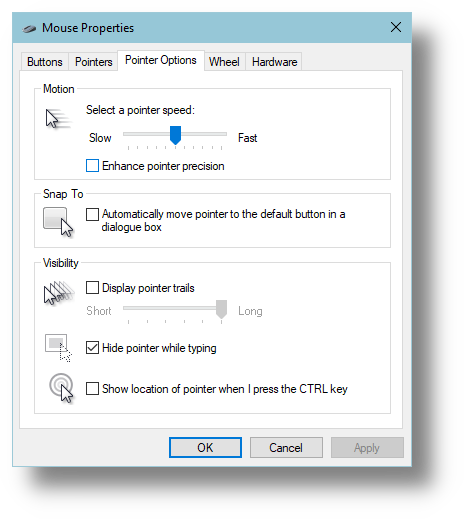
Mentioned earlier, this option disables Windows’ built-in acceleration curve. Mouse input still stutters in CoD2 so we use RInput as explained above. Good for having no acceleration when moving your mouse on the Desktop.Enable Ultimate (Or High) Performance Power Plan:
Enables your PC to use as much power as neededThe settings for Sticky Keys can be found in the “Ease of Access Centre”:
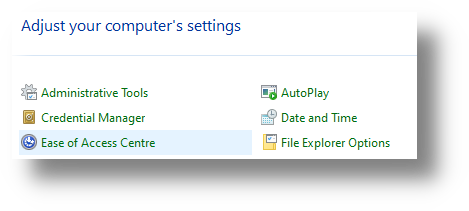
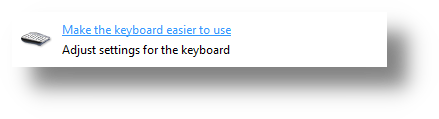
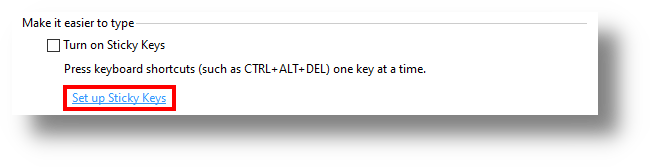
Disable all of the options in this category and click Apply:
Make sure your Pointer Speed is set to 6/11 ticks, this is the position by default but it’s good to check it.
Disable “Enhance Pointer Precision” and click Apply:
Find the Power Options:
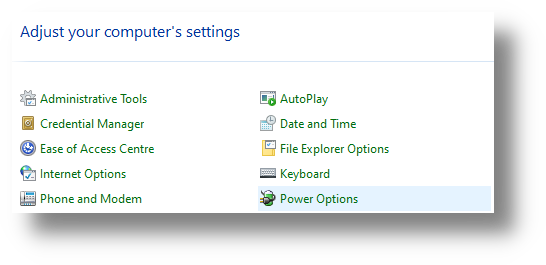
Find the Power Options:
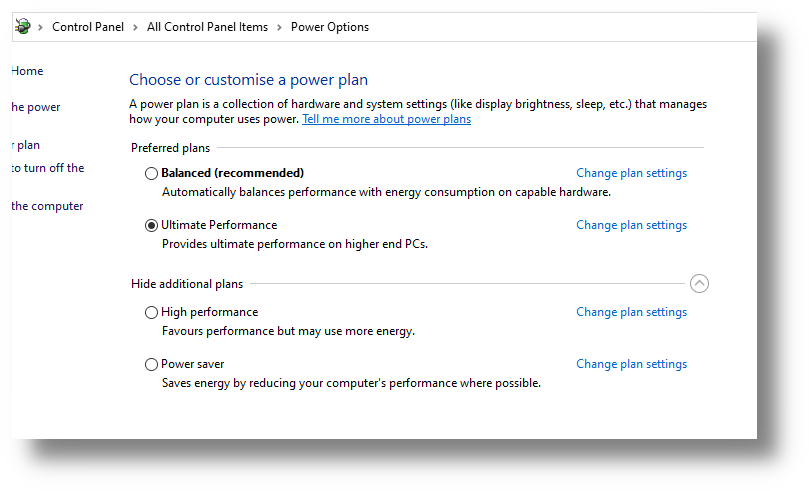
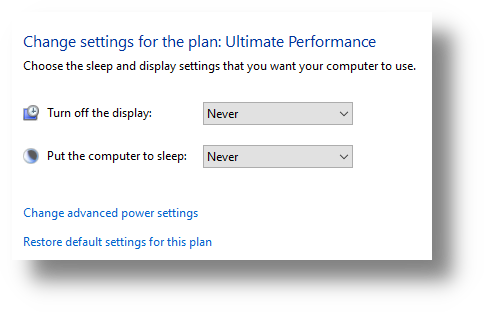
After enabling the Ultimate Performance or High Performance power plan, select “Change Plan Settings”:

Set “Turn off the Display” and “Put Computer to Sleep” to Never and click “Save Changes”:
Close the Control Panel and open the Settings Panel:
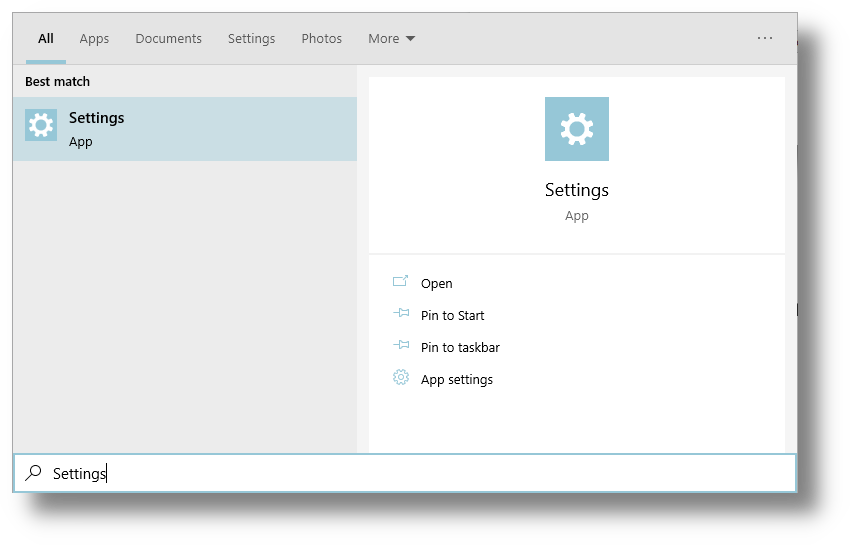
I like to make the following changes:
Edit Language Bar Options
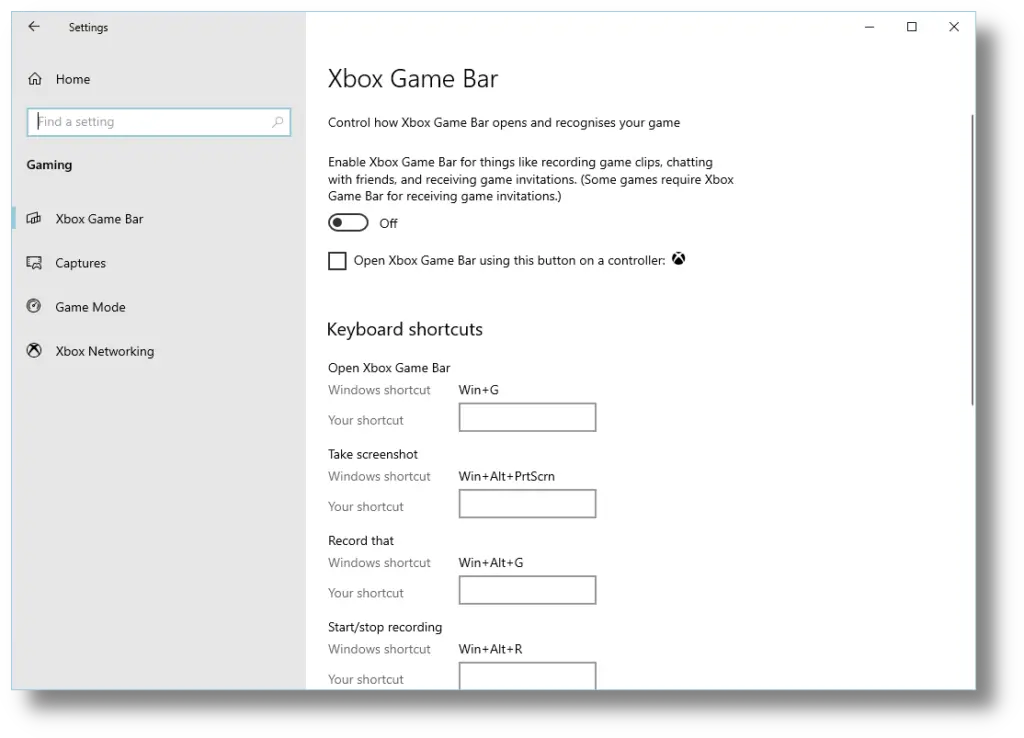
This setting also relates to key presses which can happen accidentally when playing.Disable Xbox Game Bar
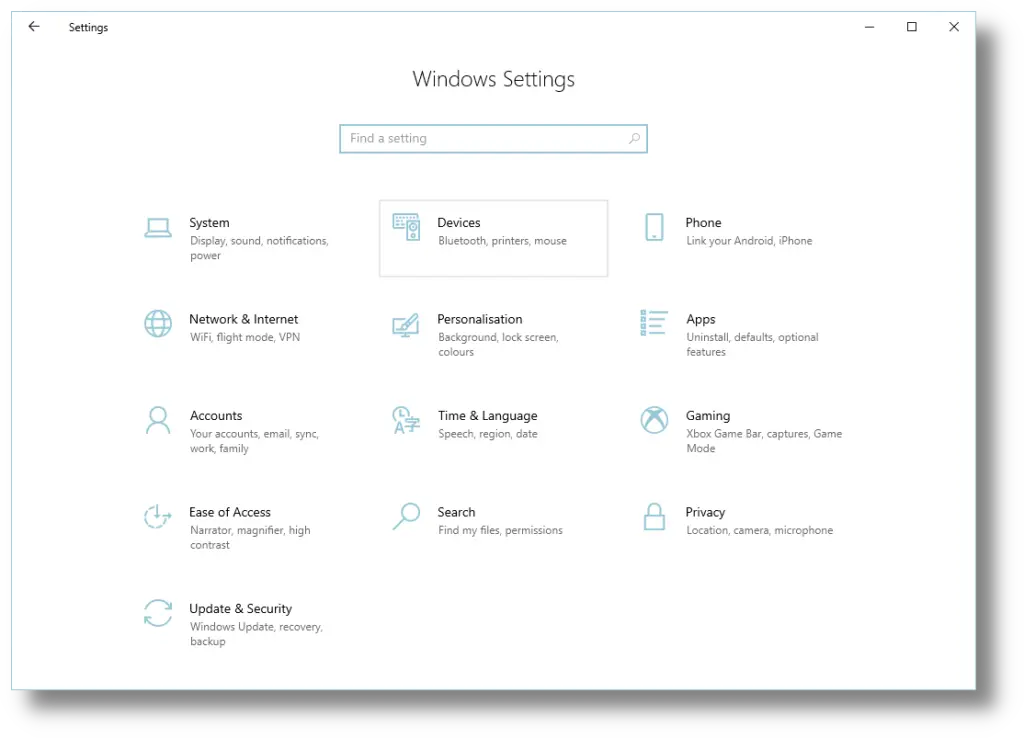
An obvious one here, I don’t know of anyone that uses Game Bar and it is usually more of an annoyance than anything else.Navigate to “Devices”:
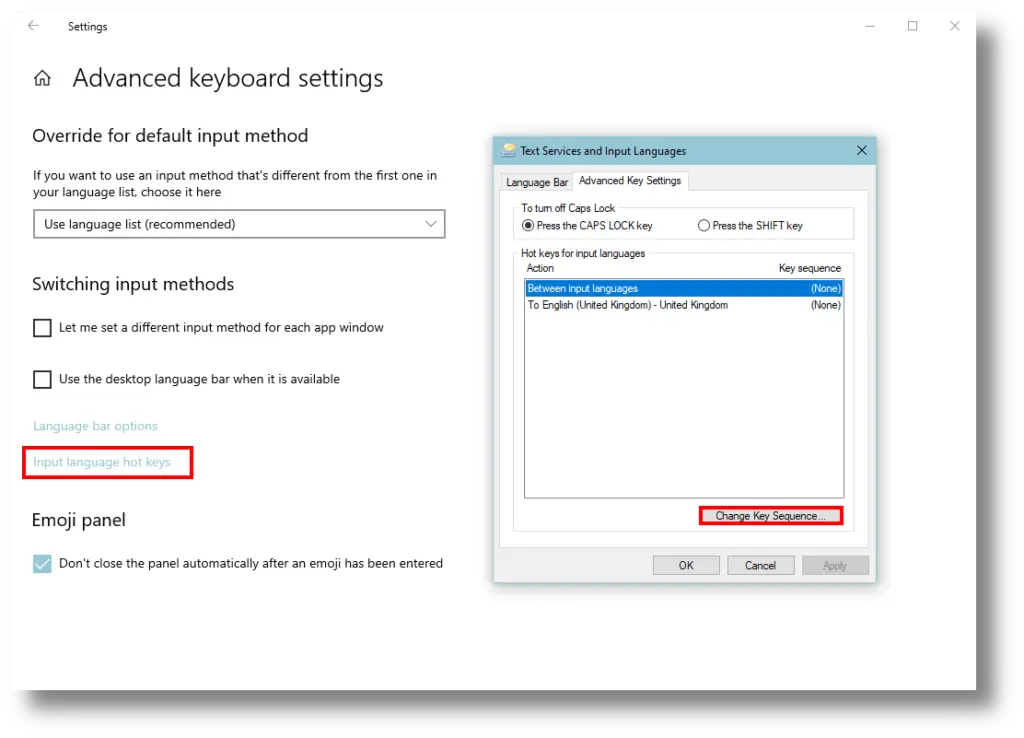
Navigate to “Typing” and click “Advanced Keyboard Settings”:
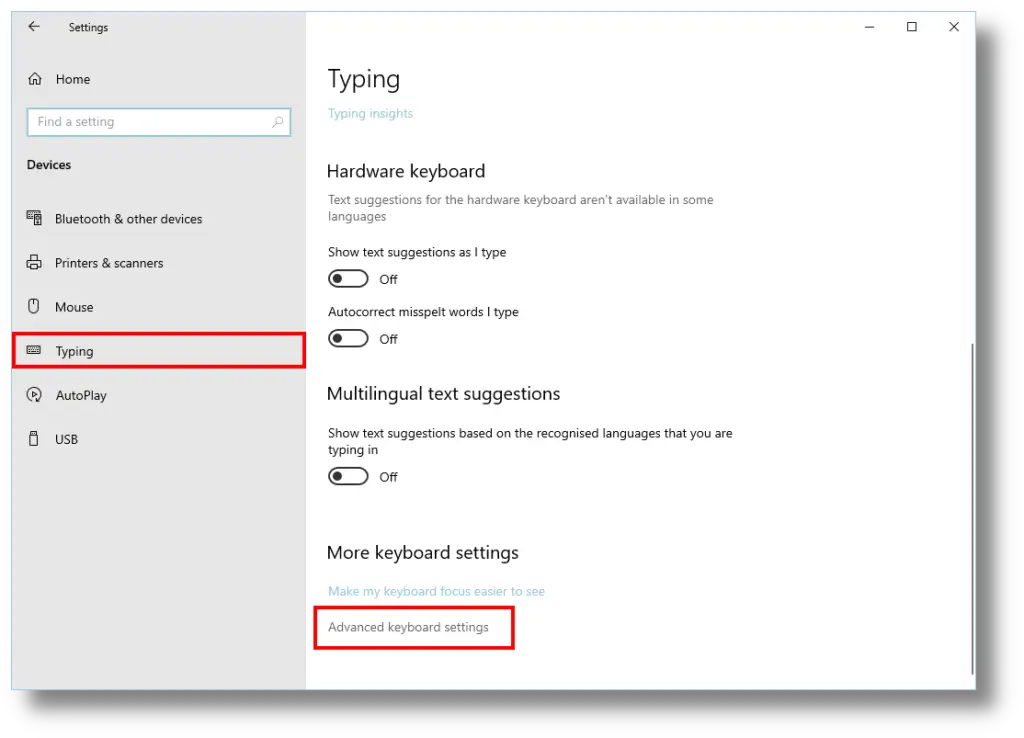
Click “Input Language Hot Keys” and then, on the dialog window that opens, click “Change Key Sequence”:
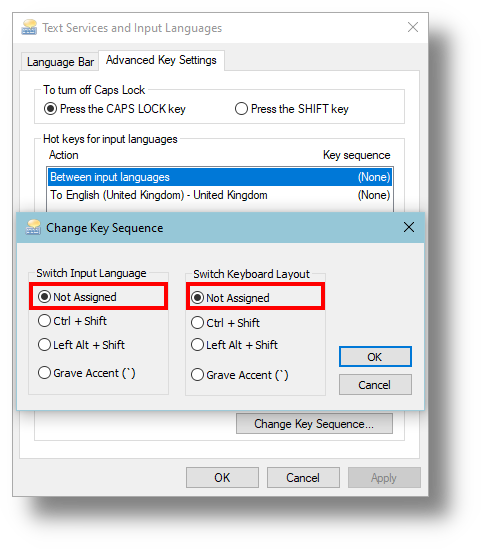
Select Not Assigned for both “Switch Input Language” and “Switch Keyboard Layout”:
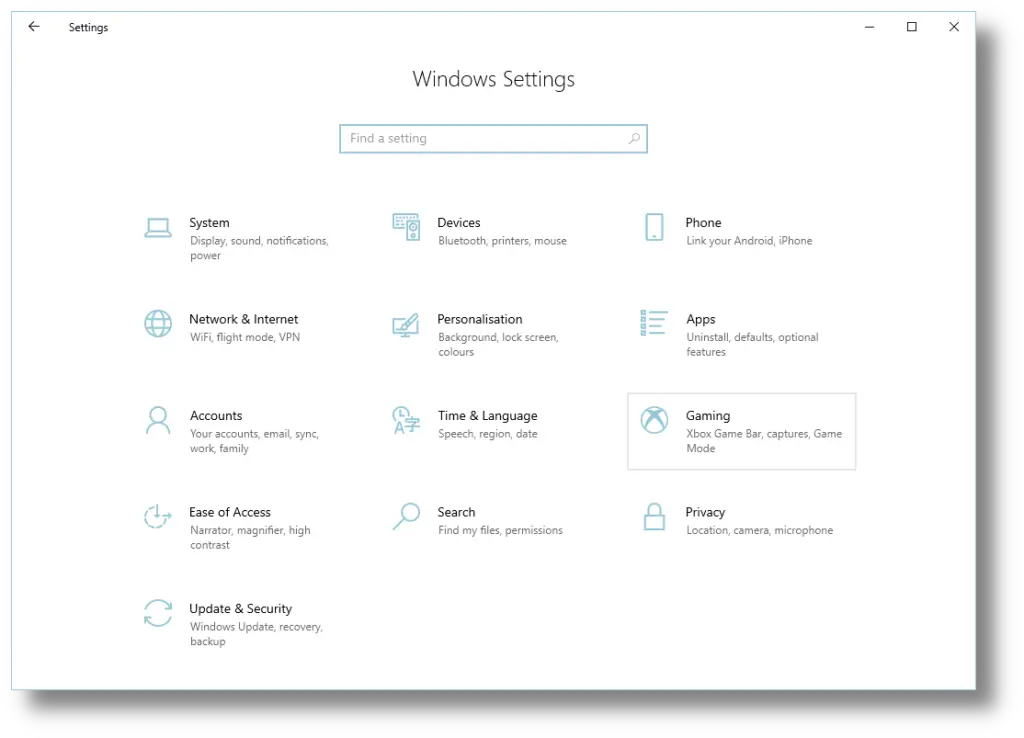
Click OK on any open windows and navigate to „Gaming“:
Disable „Xbox Game Bar“:
Some people have tried enabling/disabling Game Mode here but I just leave it at default, it’s reported that many of the issues with Game Mode and Disable Full-Screen Optimizations have been fixed in newer builds of Windows.
Close the Settings Panel.