
Call of Duty 2 Config Tweaks
By now most of you know how to change the properties of „CoD2MP_s.exe“ and edit your config for CoD2.
Here are the properties I have set for CoD2:
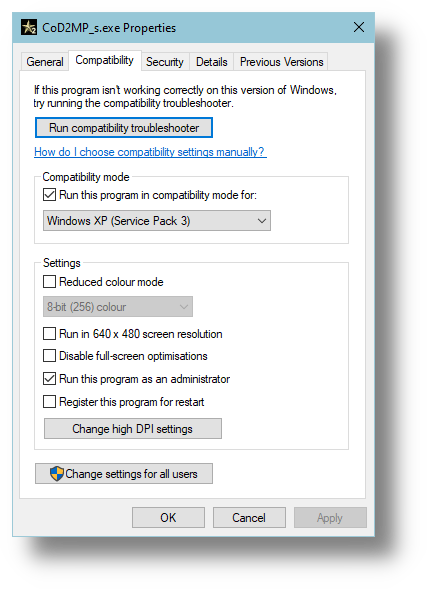
I don’t change anything in „Change High DPI Settings“ though I know some people experiment with this too.
Here are the commands that I change/add when making a new config:
ai_corpseCount „1“
cg_blood „0“
cg_brass „0“
cg_drawBreathHint „0“
cg_drawFPS „1“
cg_drawMantleHint „0“
cg_marks „0“
cg_marksLimit „0“
cl_maxpackets „100“
cl_mouseAccel „0“
com_hunkMegs „512“
com_maxfps „250“
m_filter „0“
r_aaAlpha „0“
r_aaSamples „0“
r_anisotropy „0“
r_autopriority „1“
r_depthPrepassModels „0“
r_dlightLimit „0“
r_drawDecals „1“
r_drawSun „0“
r_glow „0“
r_gpuSync „0“
r_multigpu „0“
r_overbrightBits „1“
r_picmip „3“
r_picmip_bump „3“
r_picmip_manual „1“
r_picmip_spec „3“
r_polygonOffsetBias „16“
r_polygonOffsetScale „4“
r_rendererPreference „dx7“
r_skinCache „1“
r_swapInterval „0“
r_textureMode „bilinear“
r_zFeather „0“
rate „25000“
snaps „30“
sv_framerate_smoothing „0“
sys_SSE „1“
The final recommendation is to properly set your CPU Affinity when running CoD2, by default CoD2 does not use all of your CPU cores. You can do this manually by using the Task Manager but this does not save for each restart meaning you have to change the affinity every time you run CoD2.
I use a program called ProcessHacker that saves CPU Affinity permanently. The nightly build is available here on the ProcessHacker website. https://processhacker.sourceforge.io/nightly.php Make sure to download the nightly build, the default release doesn’t have the ability to save CPU Affinity. .
The latest nightly release may be different to the one listed below.
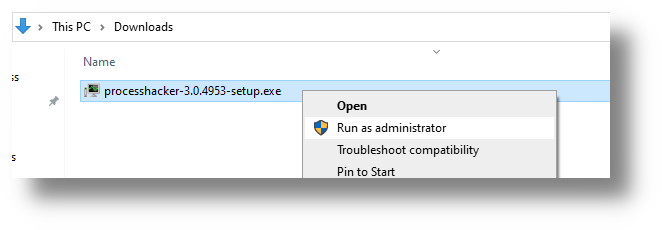
Download and run „processhacker-3.0.4953-setup.exe“ as an administrator and follow the prompts:
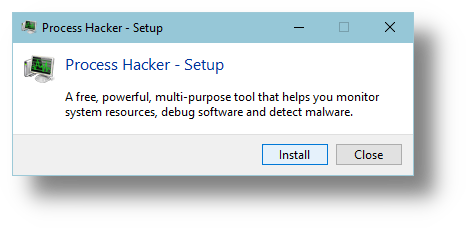
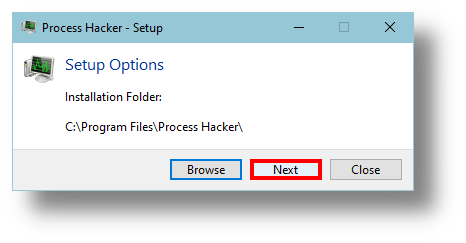
Click „Next“ and not „Browse“:
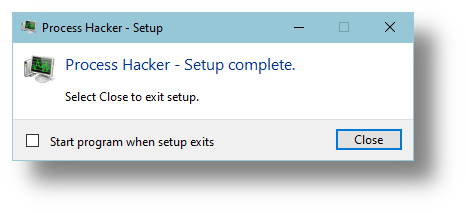
Uncheck „Start this program when setup exits“:
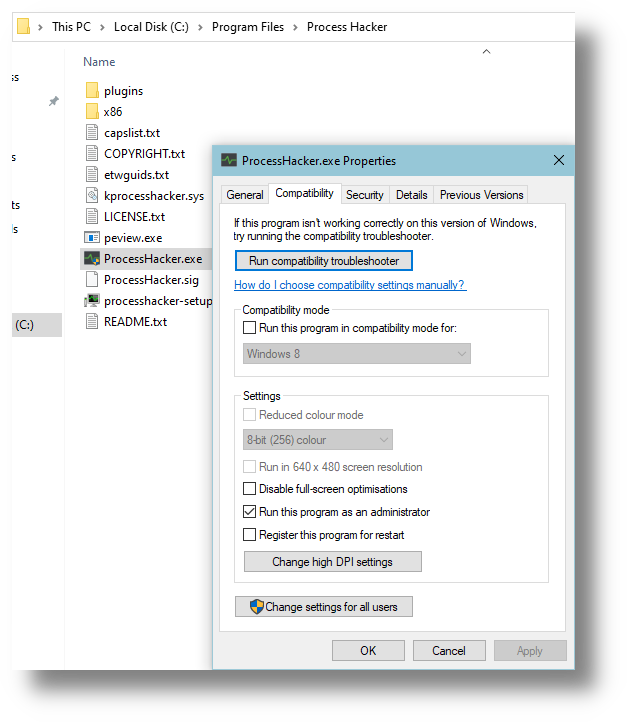
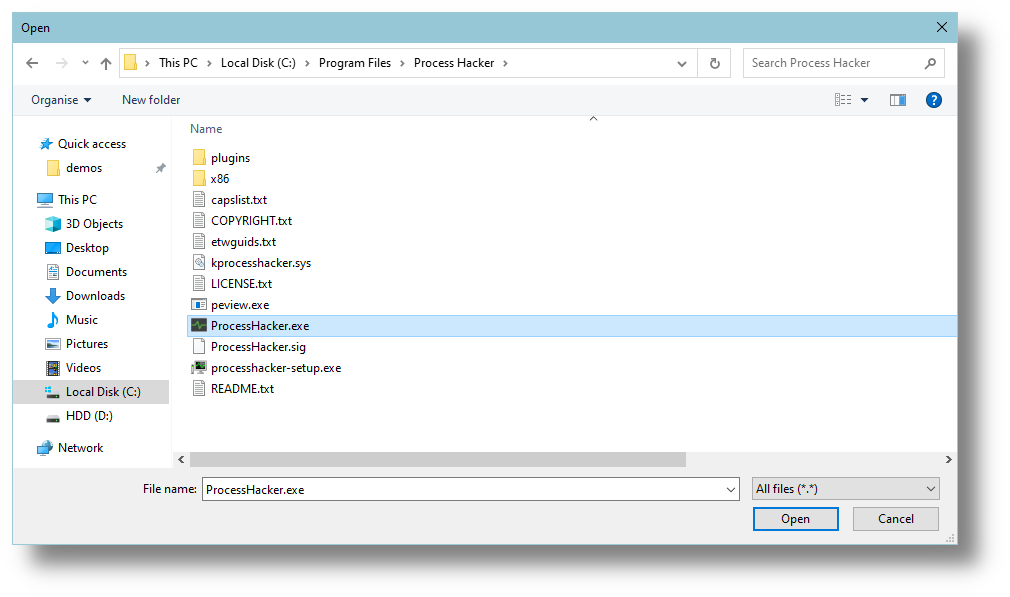
Navigate to the ProcessHacker directory (This directory should be the same for everyone since you installed it to the default directory). Edit „ProcessHacker.exe“ properties, set it to run as administrator:
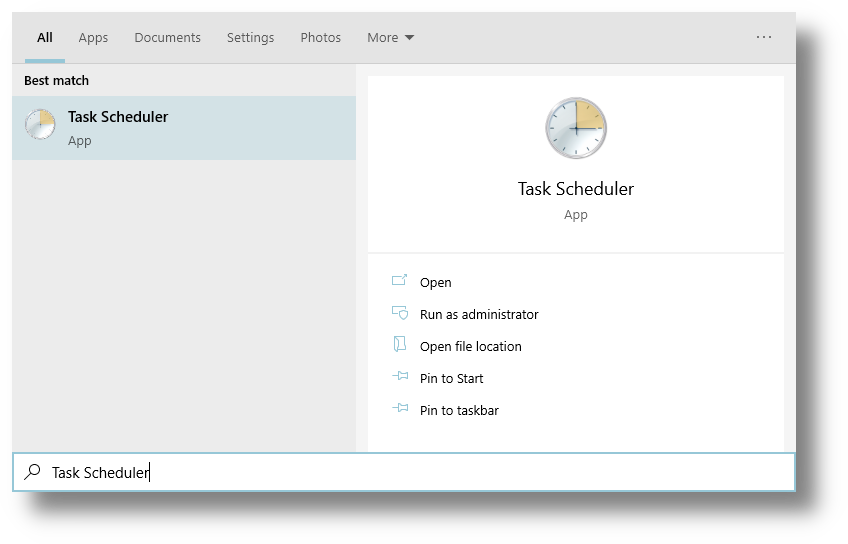
There is a bug in the nightly release of ProcessHacker which stops it from hiding properly at startup so you need to create this task yourself, open Task Scheduler (taskschd.msc):
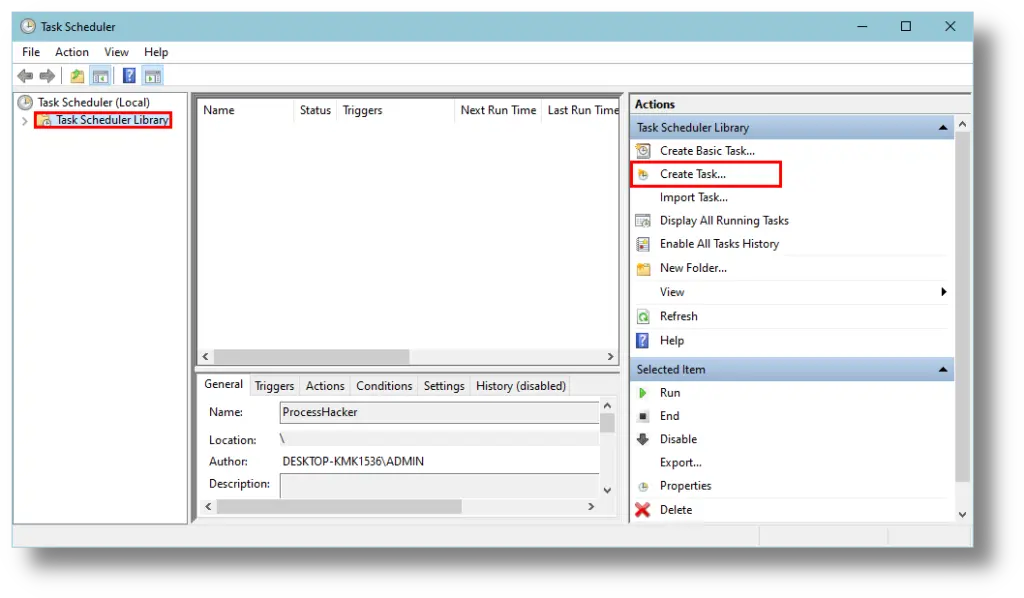
Make sure that „Task Scheduler Library“ is selected in the left pane and click „Create Task“:
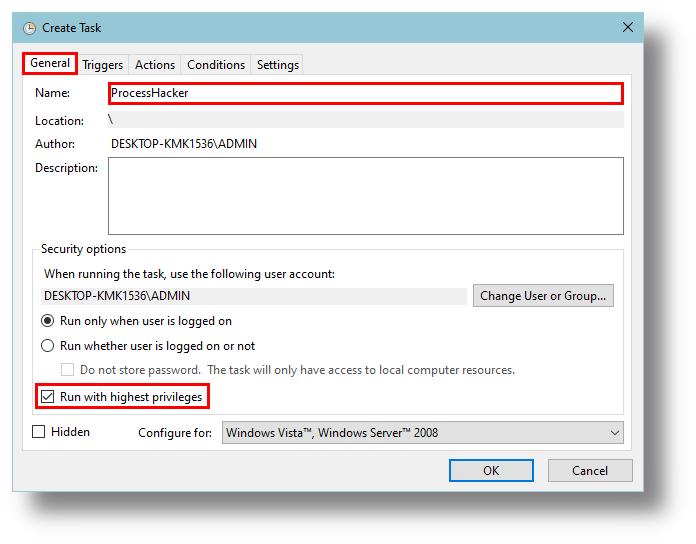
On the General Tab, give the Task a name and select „Run with Highest Privileges“:
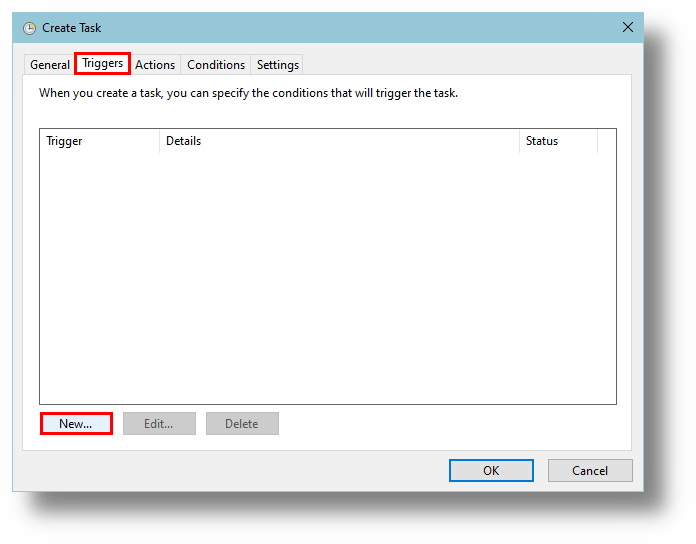
On the Triggers Tab, click new:
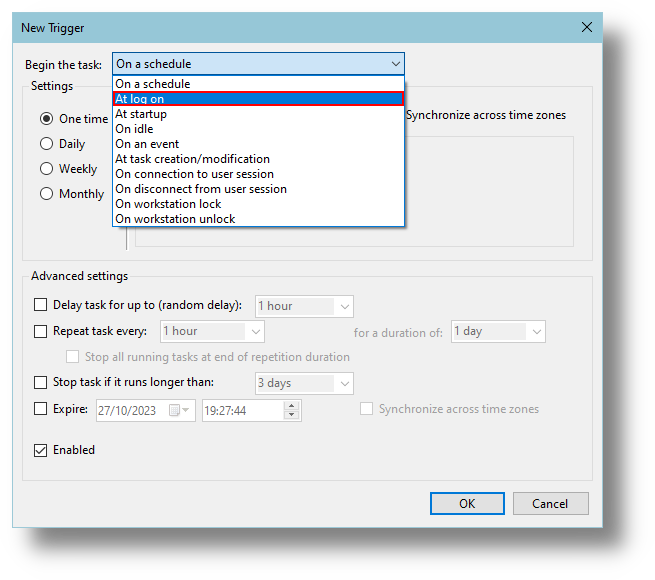
In the drop down menu, select „At log on“ and click OK:
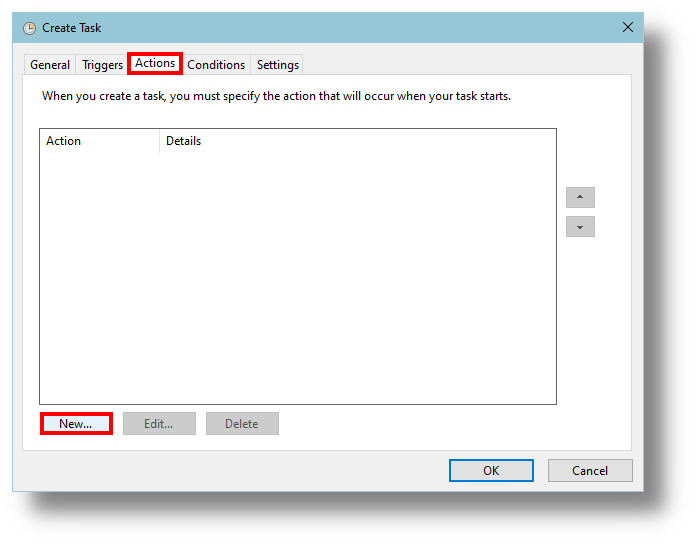
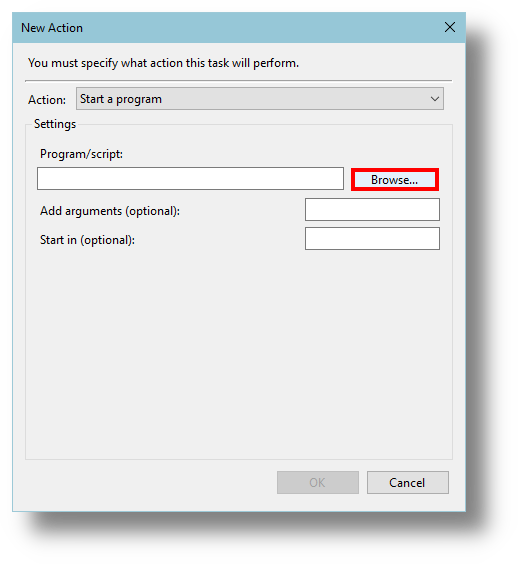
On the Actions Tab, click new:
Select „Browse“ and select „ProcessHacker.exe“:
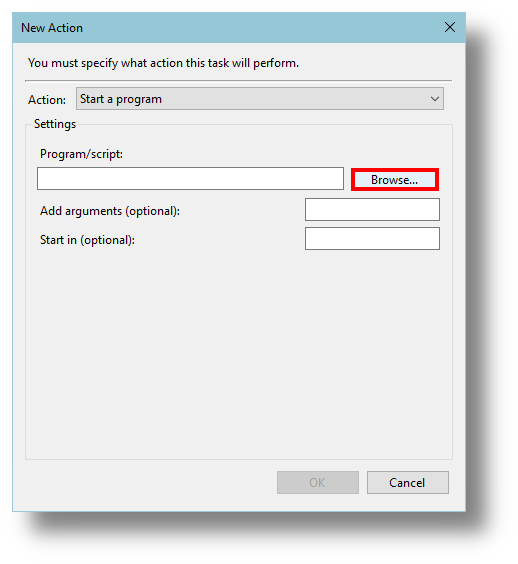
Type „-hide“ in the „Add Arguments“ box and click OK:
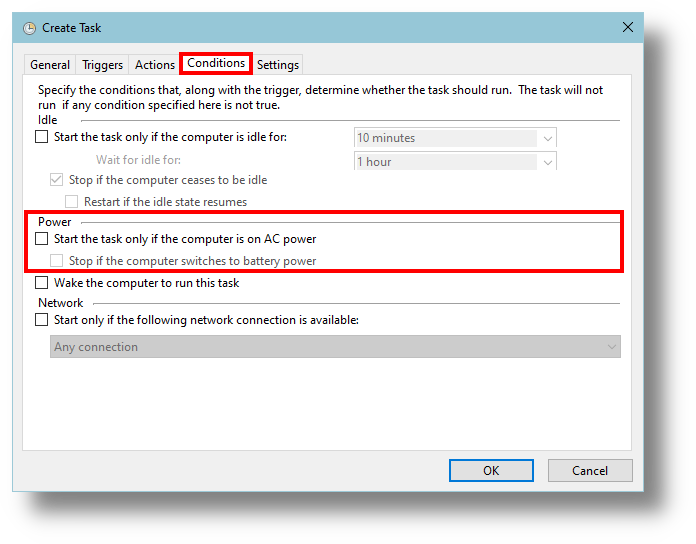
On the Conditions Tab, uncheck all Power options:
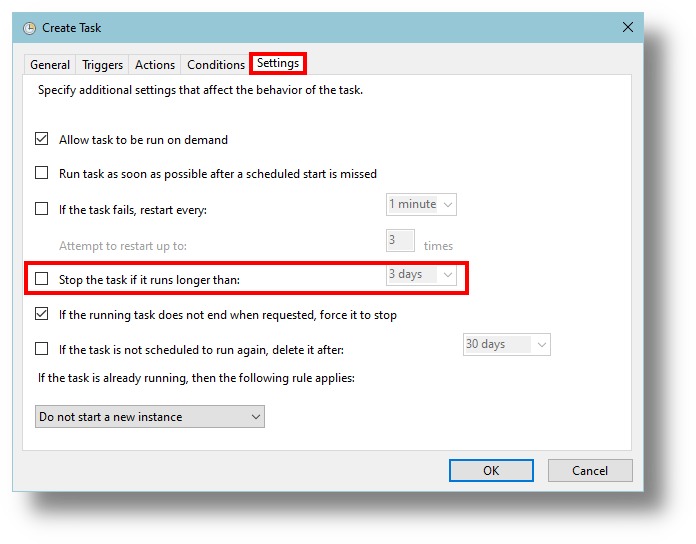
On the Settings Tab, uncheck „Stop the Task if it runs longer than:“ and click OK:
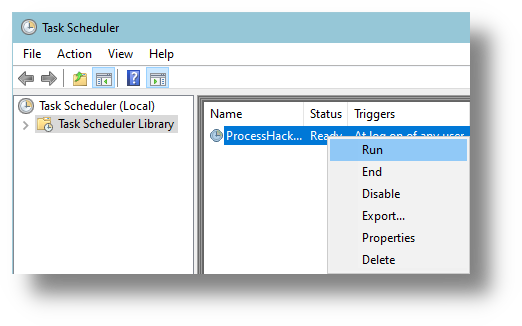
Right-Click the Task you just created and run it:
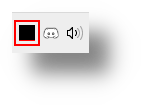
You will now see a new icon in the Taskbar Notification Area:
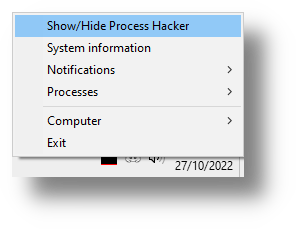
Right-Click it and select „Show/Hide ProcessHacker“:
Open ProcessHacker settings:
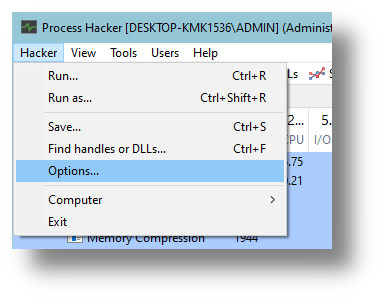
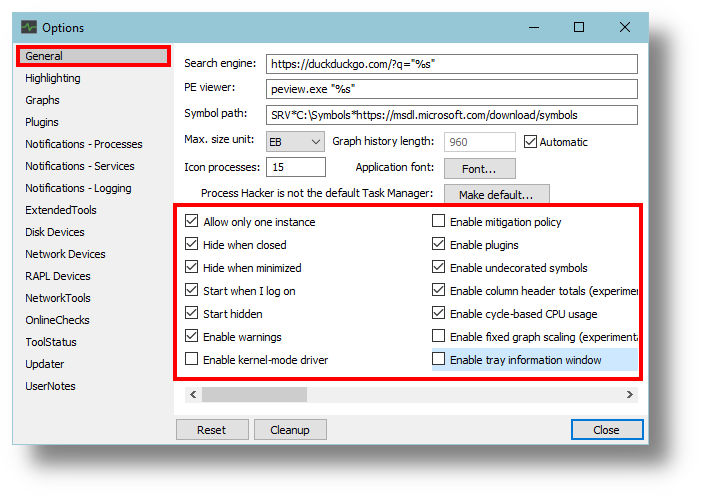
On the General Tab, check the following boxes:
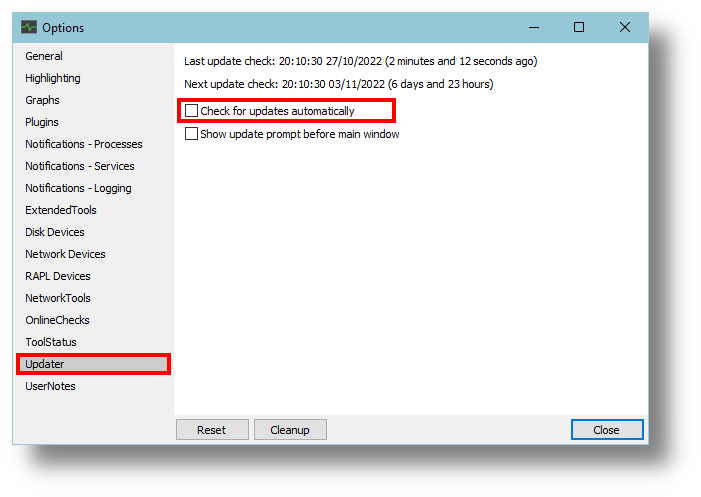
On the Updater Tab, uncheck „Check for updates automatically:“
Close ProcessHacker settings and you’ll be asked to restart ProcessHacker, click „Yes“.
Once ProcessHacker has restarted you can close it but you should still see it available in the Notification Tray. .
Run CoD2 RI and then CoD2. Alt+Tab and minimize the game when you reach the main menu.
Open ProcessHacker from the Notification Tray and click on the „Private Bytes“ column to sort by highest memory usage:
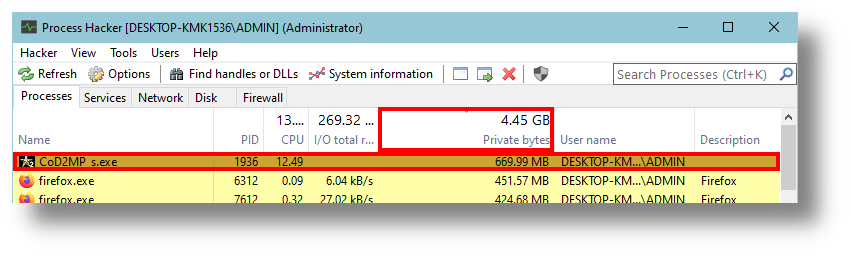
Find CoD2 and Right-Click it, find Affinity and select „Save for CoD2MP_s.exe“:
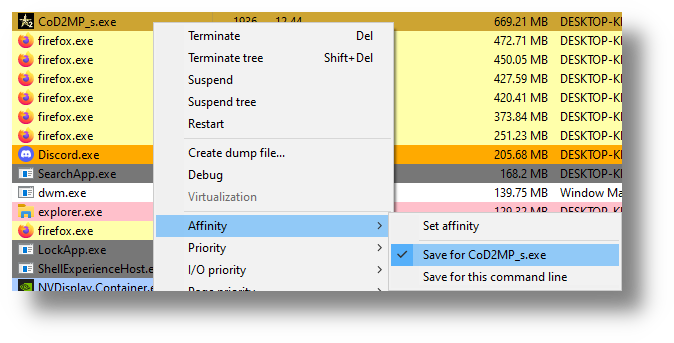
Right-Click CoD2, find Affinity and click „Set Affinity“ (As shown in the picture above).
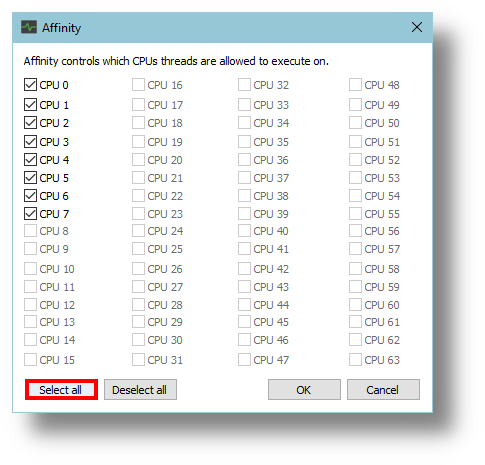
Click „Select All“ and click OK:
Close ProcessHacker.
You’re done.
You made it.
Begone frame drops, may we be blessed with smooth frags and positive KDs for all of time.